Wednesday, May 2, 2018

Facebook Pixel Integration with SplitMetrics: Benefits, Detailed How-To Guides, Custom and Lookalike Audiences


https://splitmetrics.com/blog/facebook-pixel-integration-splitmetrics/


Facebook Pixel Integration with SplitMetrics: Benefits, Detailed How-To Guides, Custom and Lookalike Audiences


  1. .
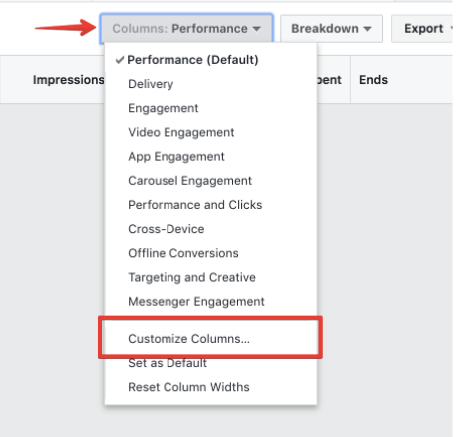
  2. Cost per Conversion from Facebook Ads manager
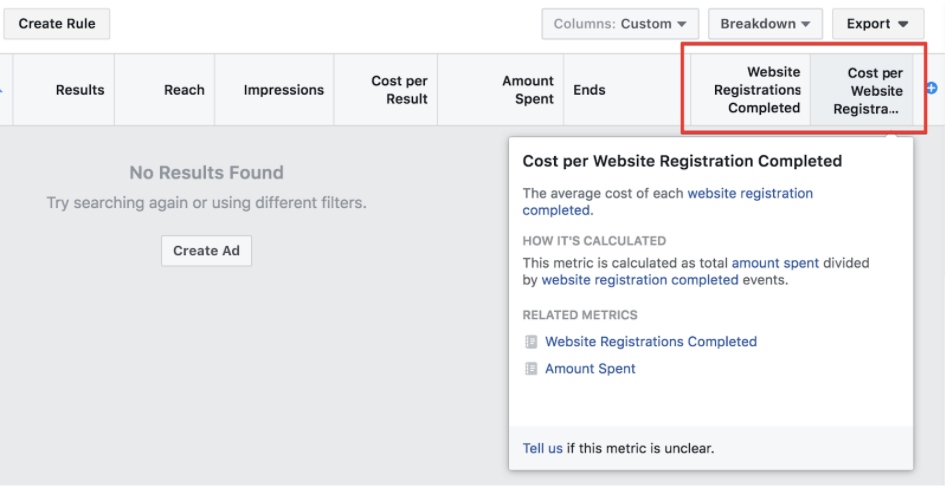
  3. Search for ‘Website Registration’ or ‘Website Content’ to filter relevant columns. Enable relevant columns like:
  • ‘Website Registrations Completed’ (the number of install on your experiment page)
or
  • ‘Cost per Website Registration Completed’ (cost per install on your experiment page).
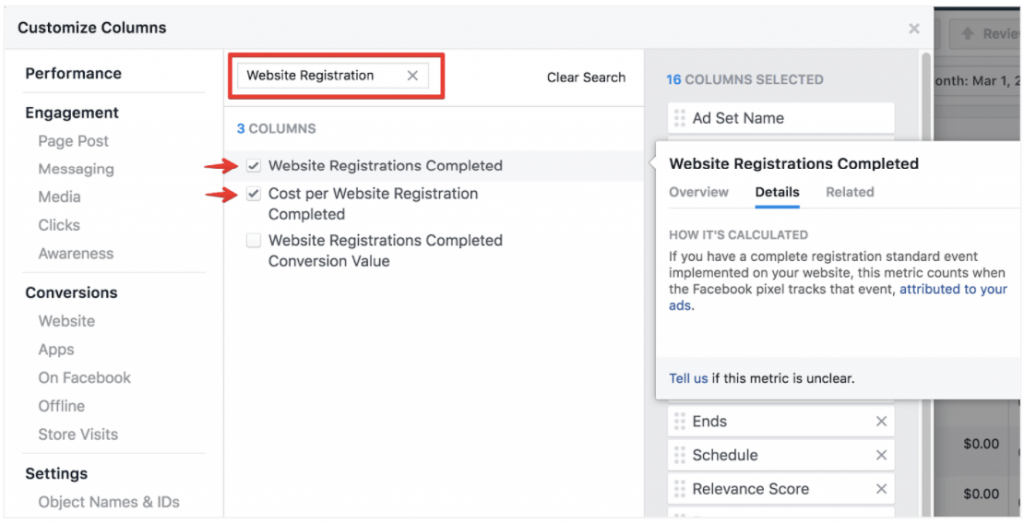
Website Content to filter relevant columns
Click ‘Apply’ and see the actions related to SplitMetrics experiments alongside with other metrics such as Spend, Impressions, Clicks, etc.
actions related to SplitMetrics on Facebook ads

Creating Custom and Lookalike Audiences

The integration of SplitMetrics with the Facebook Pixel makes it possible to create custom and lookalike audiences from the users that took a specific action during your A/B experiments. That can take you targeting to the whole new level.
All you have to do is taking 4 easy steps to create a custom Audience:
  1. To create Facebook Audience, go to Facebook Ads manager > Tools > Audiences.
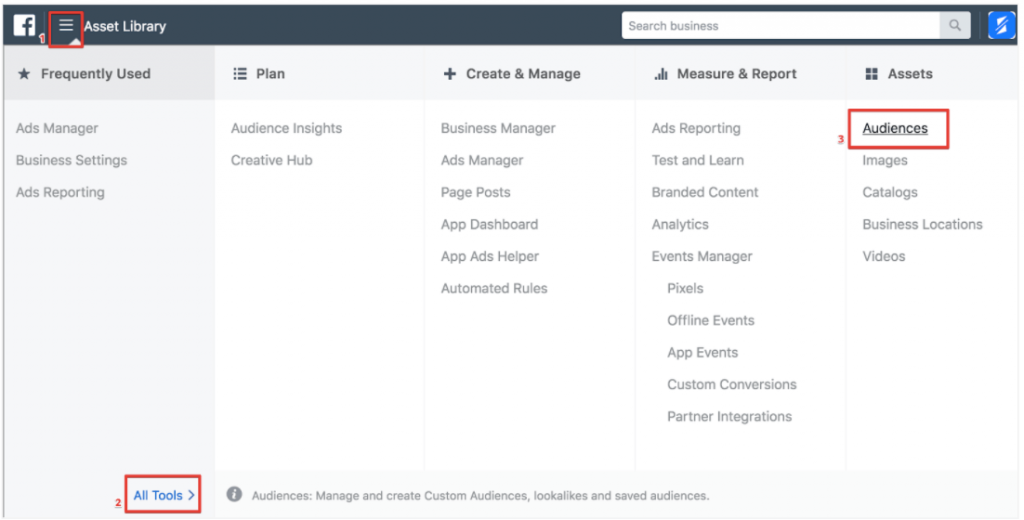
creating custom Audience
  1. To create custom Audience based on some action that users took on your experiment pages, click ‘Create Custom Audience’.
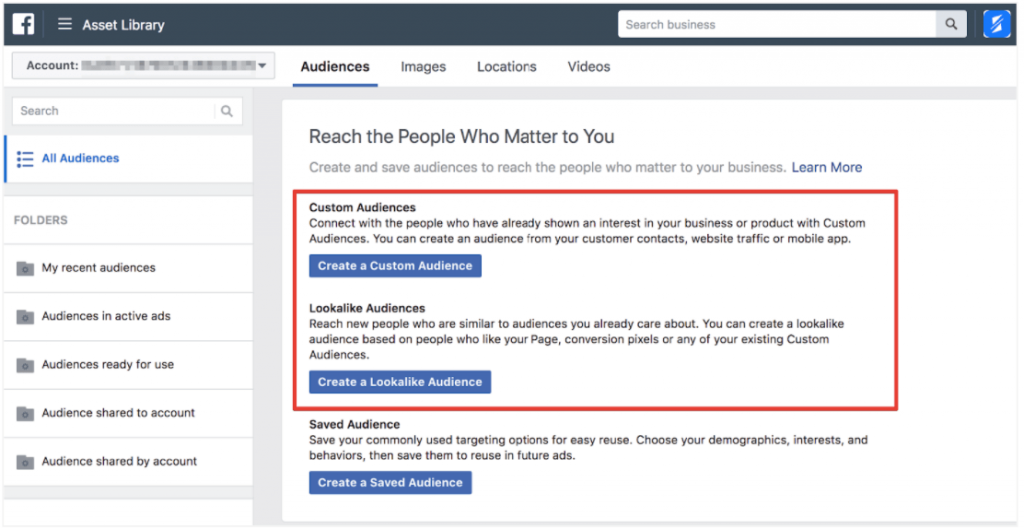
 Audience based on SplitMetrics tests actions
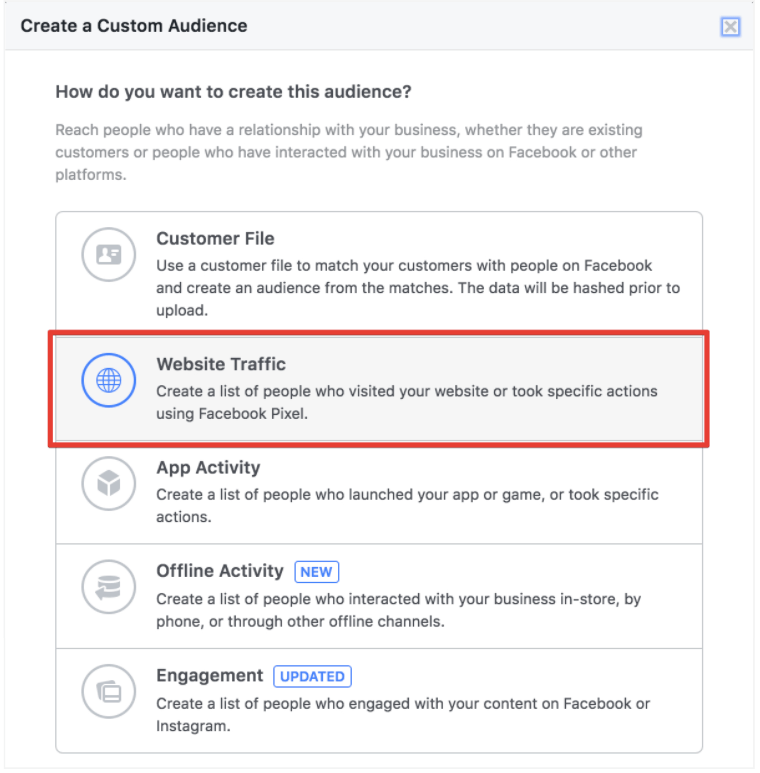
  1. Choose the  ‘Website Traffic’ option.
Choosing Website Traffic option
  1. Start creating your new audience by selecting the pixel integrated with SplitMetrics experiments. In the course of the setup, select relevant events to include (or exclude) people:
  • Visits on Experiment Pages – you can include (or exclude) the users that visited any experiments or some specific ones. You can also add users that spend enough time on your experiment pages.
  • View Content – choose this event if you want to include (or exclude) the users that took an exploratory action. It’s better to use this event only if you have a small number of installs on your experiment page (<500).
  • Complete Registration – choose this event if you want to include (or exclude) the users that tapped the ‘Install’ button on a SplitMetrics experiment page.
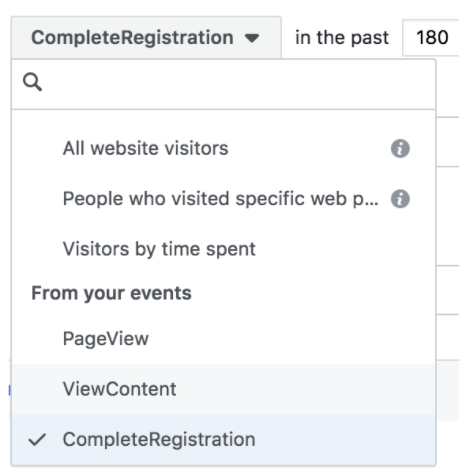
Completing Custom Audience Registration
It’s recommended to use a wider lookback time range (up to 90 or 180 days) to reach more users. There is an option of refining your audience by Device (iOS, Android, Desktop).
You can also add or eliminate users from specific experiments filtering URL by domain and experiment IDs. You can get an experiment ID from the experiment landing page URL which has the following structure:
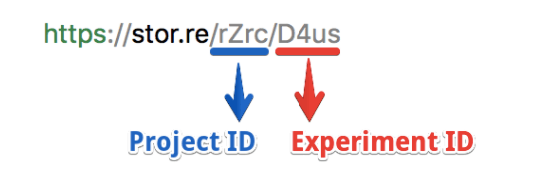
Structure of SplitMetrics URL
  • Project ID – a unique internal identifier of a group of experiments related to one application (project).
  • Experiment ID – a unique internal identifier of a SplitMetrics experiment.
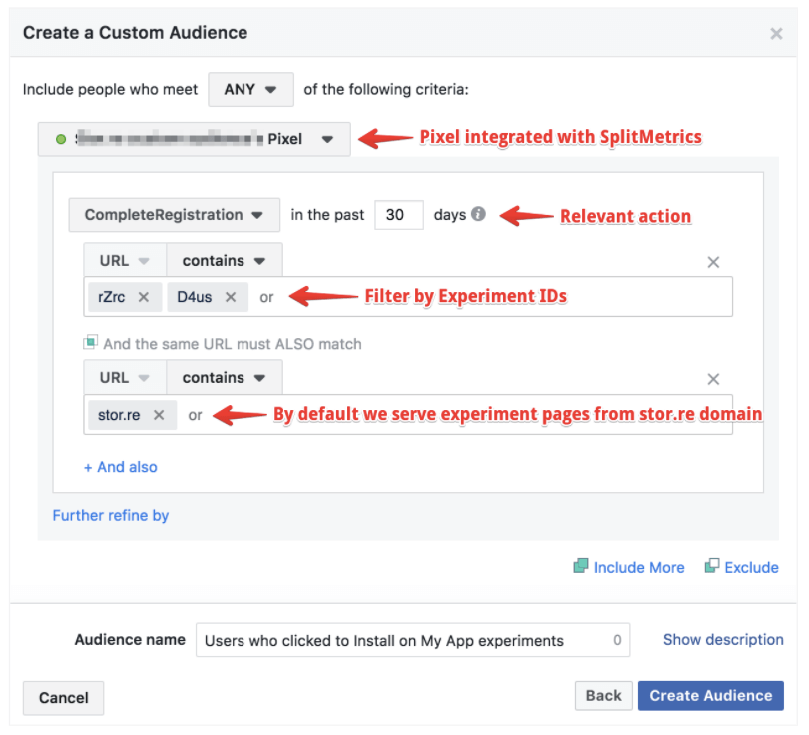
Then fill in the ‘Audience Name’ input line and click ‘Create Audience’.
Creation of Custom Audience
Mind that it may take a few minutes to finish the matching of users from SplitMetrics experiments to people on Facebook.
Once your custom audience is ready, you can view this audience and check status in the Audience Manager:
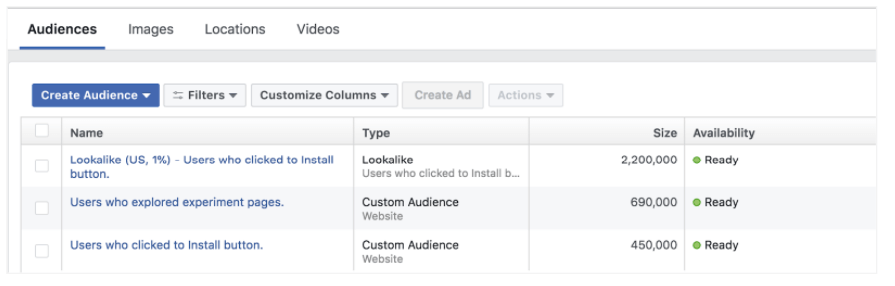
checking status in the Audience Manager
We’ve noticed that advertisers start to achieve notable efficiency for their ads when the size of their ‘Custom Audience’ reaches at least 1,000 matched users. So try not to limit the size of your audience by a very restrictive filter and build audiences with at least 100 users in size.
Now you can proceed with creating a  ‘Lookalike Audience’ from your ‘Custom Audience’. It will help your ads reach people similar to the users who visited, explored or took some action in the course of your previous A/B experiments.
  1. Start creating a new ‘Lookalike Audience’:
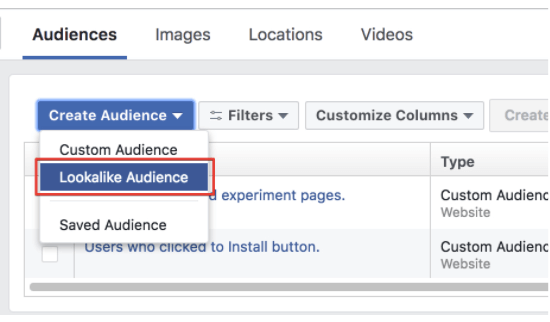
creating a ‘Lookalike Audience’
  1. Choose the following parameters for your ‘Lookalike Audience’:
  • Select the ‘Custom Audience’ that you’ve created in the previous steps as the ‘Source’.
  • Pick countries or regions for your new ‘Lookalike Audience’.
  • Audience size ranges from 1% to 10% of the total population of the countries you have chosen. Mind that if you keep the range within 1%, the audience will be represented by the users that match your source more accurately.
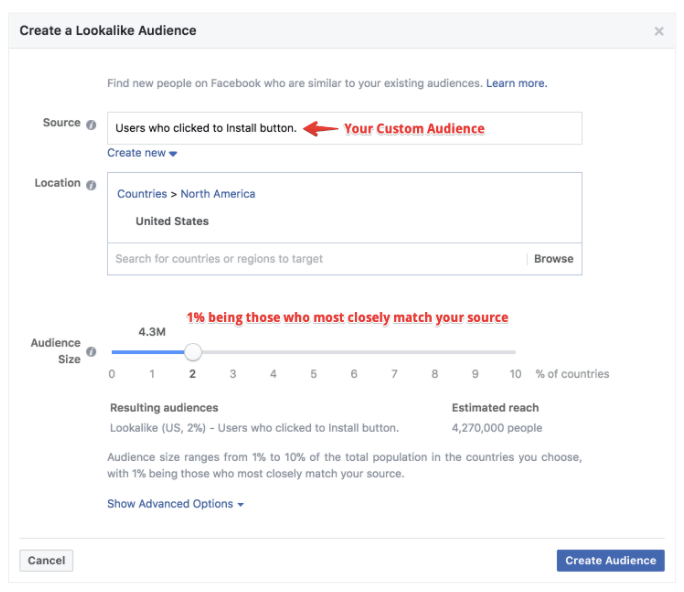
Facebook ads Audience size ranges
  1. Click ‘Create Audience’.
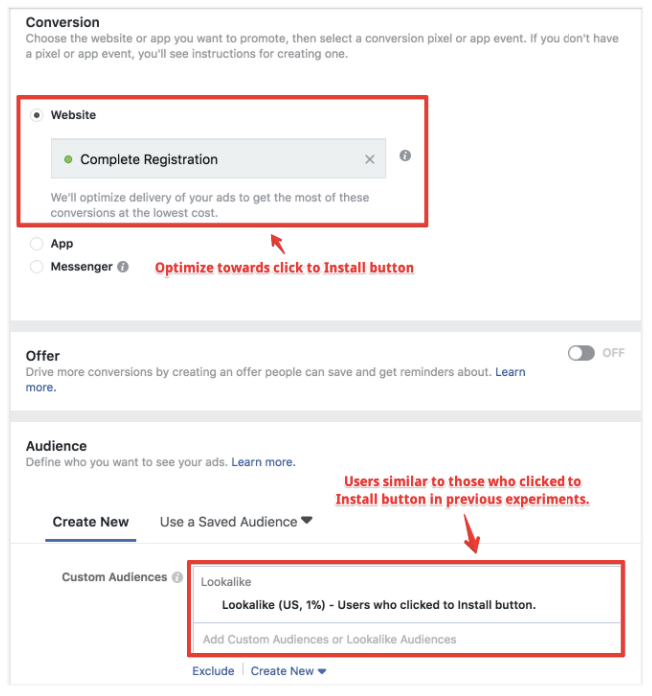
Congratulations, now you can use better audience settings for your Facebook ads. Along with Conversion optimization, it gives you powerful tools to optimize your next ad campaigns for A/B experiments on the SplitMetrics platform.
optimize ad campaigns for SplitMetrics A/B experiments

How to Get Facebook Audience Insights for A/B Experiments with SplitMetrics

Facebook Analytics lets you understand and optimize a complete journey of your customer across mobile, web, bots and more. By integrating Facebook Pixel with SplitMetrics experiments you can get:
  • funnels;
  • automated insights;
  • rich demographics.
Funnels give you the opportunity of optimizing your user experiences and journeys by allowing you to measure conversion for a sequence of actions (view / explore /install) people take on your experiments.
This means you can learn more about conversion rates and completion times for every step on a user’s journey in the course of your A/B experiment. You can always choose a certain segment to view a funnel for a more specific group of users getting more granular insights.
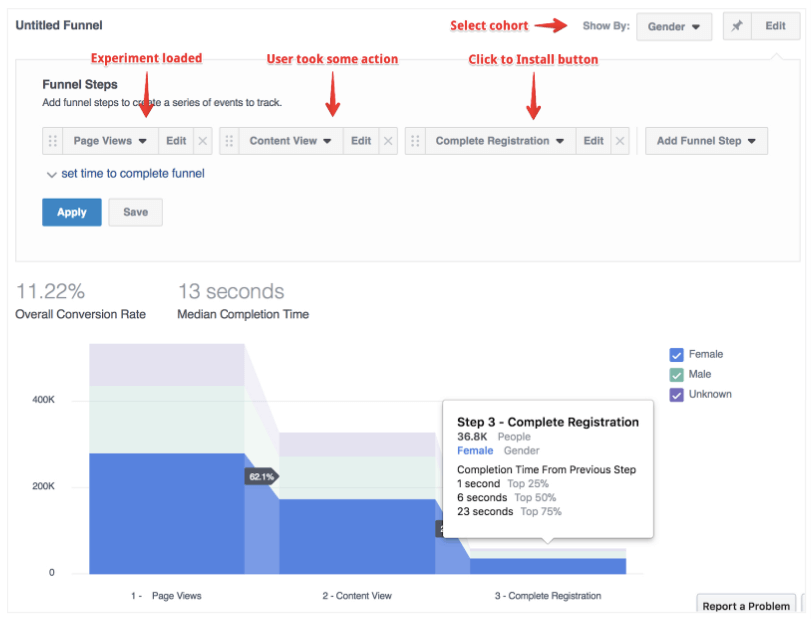
Facebook Audience Insights for A/B Experiments
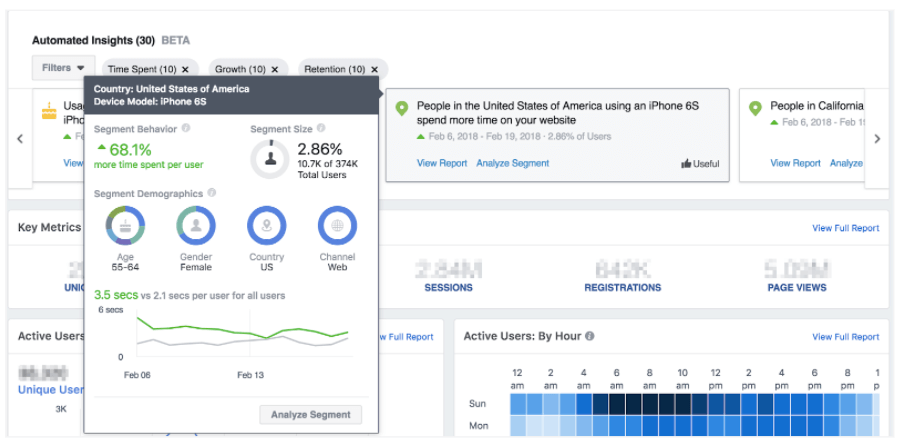
Automated insights are possible thanks to advanced machine learning and expertise in growth that Facebook Analytics uses. Thus, it’s able to provide valuable insights and trends automatically.
Automated insights of Facebook Analytics
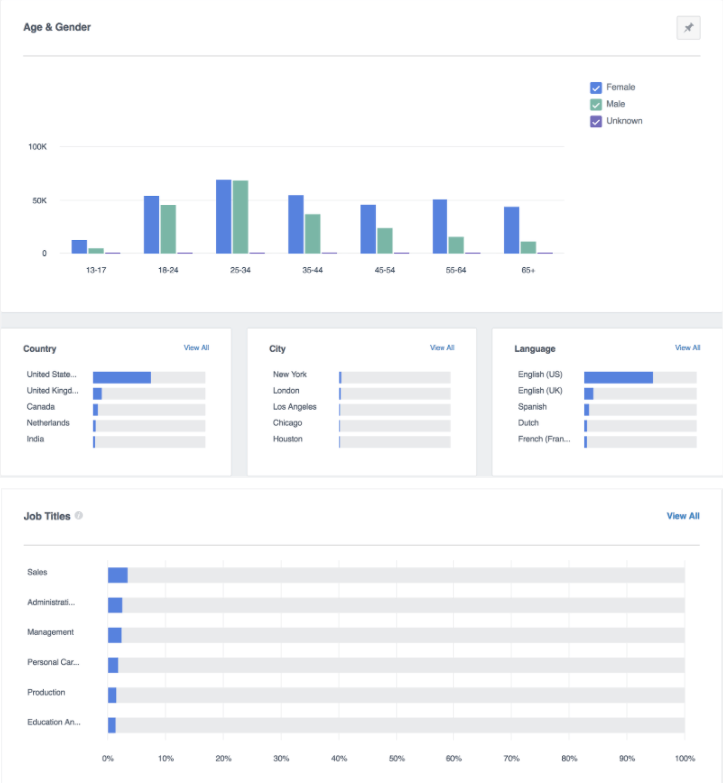
Rich demographics that accompanies audience insights helps to understand your customers and potential users at a deeper level and adjust your marketing activity with these particular qualities in mind.
 Rich demographics Facebook Analytics provides
If you use Facebook traffic for your A/B experiments, it’s definitely worth integrating the Facebook Pixel with SplitMetrics. Not only will you avoid overpaying for your ads and optimize cost efficiency of your marketing campaigns, but also get an even better understanding of your target audience which may become a real game changer for your app’s performance.

splitmetrics app ab test button


Facebook Split Testing : https://www.facebook.com/business/help/1738164643098669


https://www.facebook.com/business/help/1738164643098669

About split testing

Split testing lets you test different versions of your ads so you can see what works best and improve future campaigns. For example, you can test the same ad on two different audiences to see which ad performed better. Or, to test two delivery optimizations to determine which selection yields better results.
To get started, navigate to Ads Manager and create a split test. Use this guide to understand the basics of split testing, including variables, budget and scheduling.

-1:30
HD

How split testing works

Facebook's split testing feature allows advertisers to create multiple ad sets and test them against each other to see what strategies produce the best results. Here's how it works:
  • Split testing divides your audience into random, non-overlapping groups.
  • This randomization helps ensure the test is conducted fairly because other factors won't skew the results of the group comparison. It also ensures each ad set is given an equal chance in the auction.
  • Each ad set tested has one distinct difference, called a variable. Facebook will duplicate your ads and only change the one variable you choose.
  • To get the most accurate results from your split test, you'll only have the opportunity to test one variable at a time. For example, if you test two different audiences against each other, you can't also test two delivery optimizations simultaneously because you wouldn't know for sure which change affected the performance.
  • Split Testing is based on people, not cookies, and gathers results across multiple devices.
  • The performance of each ad set is measured according to your campaign objective and is then recorded and compared. The best performing ad set wins.
  • After the test is complete, you'll get a notification and email containing results. These insights can then fuel your ad strategy and help you design your next campaign.

Objectives available for split testing

Facebook split testing supports the following business objectives:
  • Traffic
  • App installs
  • Lead generation
  • Conversions
  • Video views
  • Catalog sales
  • Reach
  • Engagement

Variables available for split testing

Advertisers will have the option to test one of the following variables. You can test 5 different strategies with one of these variables.
  • Target audience
  • Delivery optimization
  • Placements
  • Creative
Below are some examples of variables you could split test.
Audiences:
  • Women, Age 21-30 versus Women, Age 31-40 versus Women, Age 41-50
  • People living in London versus people living in Paris versus people living in New York City
Delivery optimizations:
  • Optimize for conversions versus optimize for link clicks
  • Optimize for conversions with a conversion window of 1 day versus optimize for conversions for a conversion window of 7 days versus optimize for link clicks
Placements:
  • Automatic placements versus customized placements
  • Mobile placements versus desktop placements
Creative:
  • Ad with one image versus ad with different image versus ad with different image
  • Ad with a video versus ad with single image
Learn more about the variables you can test.

Setting a budget and schedule

Your split test should have a budget that will produce enough results to confidently determine a winning strategy. You can use the suggested budget that we provide if you're not sure about an ideal budget.The budget and audience will then be divided between the ad sets. You can choose to divide it evenly or weigh one more than the other(s), depending on your preference.
We recommend 4-day tests for the most reliable results, and if you aren't sure about an ideal time frame, you can start with 4 days.In general, your test should run for at least 3 days and no longer than 14 days. Tests shorter than 3 days may produce insufficient data to confidently determine a winner, and tests longer than 14 days may not be an efficient use of budget since a test winner can usually be determined in 14 days or sooner.
For this reason, we recommend a test between 3-14 days for tests created in the API. When creating a split test in Ads Manager, you must create a test with a schedule between 3 and 14 days.

Next steps

When the test is over, you'll receive a notification in Ads Manager and get an email with the results. Learn more about how the winning ad set is determined. Once you receive your split test results, you can review them to discover insights about the best performing ad set. These insights can help you determine your ad strategy and design your next campaign.
Create a Split Test
Was this information helpful?

Yes

Split Testing - https://developers.facebook.com/docs/marketing-api/guides/split-testing

https://developers.facebook.com/docs/marketing-api/guides/split-testing

Split Testing


Test different advertising strategies on mutually exclusive audiences to see what works. The API automates audience division, ensures no overlap between groups and helps you to test different variables. Test the impact of different audience types, delivery optimization techniques, ad placements, ad creative, budgets and more. You or your marketing partner can create, initiate and view test results in one place. See Ad Study Reference.

Guidelines


  • Define KPIs with your marketing partner or internal team you create a test.
  • Confidence Level Determine this before creating a test. Tests with larger reach, longer schedules, or higher budgets tend to deliver more statistically significant results.
  • Select only one variable per test. This helps determine the most likely cause of difference in performance.
  • Comparable Test Sizes When you test for volume metrics, such as number of conversions, you should scale results and audience sizes so both test sizes are comparable.

Test Restrictions


  • Max concurrent studies per advertiser: 100
  • Max cells per study: 100
  • Max ad entities per cell: 100

Variable Testing


While you can test many different types of variables, we recommend you only test one variable at a time. This preserves the scientific integrity of your test, and helps you identify the specific difference that drives better performance.

For example, consider a split test with ad set A and ad set B. If A uses conversions as its delivery optimization method and automatic placements, while B uses link clicks for delivery optimization *and *custom placements, you cannot determine if the different delivery optimization methods or the different placements drove better performance.

In this example, if both ad sets used conversions for delivery optimization, but had different placements, you know that placement strategy is responsible for differences in performance.

To setup this test at the ad set level:
curl \
-F 'name="new study"' \
-F 'description="test creative"' \ 
-F 'start_time=1478387569' \
-F 'end_time=1479597169' \
-F 'type=SPLIT_TEST' \
-F 'cells=[{name:"Group A",treatment_percentage:50,adsets:[<AD_SET_ID>]},{name:"Group B",treatment_percentage:50,adsets:[<AD_SET_ID>]}]' \
-F 'access_token=<ACCESS_TOKEN>' \ https://graph.facebook.com/<API_VERSION>/<BUSINESS_ID>/ad_studies

Testing Strategies


You can test two or more strategies against one another. For example, do ads with the conversion objective have a greater impact on your direct response marketing than a website visits objective? To setup this test at the campaign level:
curl \
-F 'name="new study"' \
-F 'description="test creative"' \ 
-F 'start_time=1478387569' \
-F 'end_time=1479597169' \
-F 'type=SPLIT_TEST' \
-F 'cells=[{name:"Group A",treatment_percentage:50,campaigns:[<CAMPAIGN_ID>]},{name:"Group B",treatment_percentage:50,campaigns:[<CAMPAIGN_ID>]}]' \
-F 'access_token=<ACCESS_TOKEN>' \ https://graph.facebook.com/<API_VERSION>/<BUSINESS_ID>/ad_studies

Evaluating Tests


To determine the test that performs the best, chose a strategy or variable that achieves the highest efficiency metric based on your campaign objective. For example, to test the conversions objective, the ad set that achieves the lowest cost-per-action (CPA) performs the best.

Avoid evaluating tests with uneven test group sizes, or significantly different audience sizes. In this case, you should increase the size and results of one split so that it is comparable to you other tests. If your budget is not proportionate to the size of the test group you should consider the volume of outcomes in addition to efficiency.

You should also use an attribution model that makes sense for your business, and to agree upon it before initiating a split test. If your current attribution model needs reevaluation, contact your Facebook representative to run a lift study. This can show the true causal impact of your conversion and brand marketing efforts.

Budgeting


You can use custom budgets with your split tests, and choose to test different budgets against each other. However, budget directly impacts reach for your test groups. If your test groups result in large differences in reach or audience size, you increase budget to improve your results and make your test comparable